How to Install Docker on Ubuntu 24.04 Step by Step
A practical walkthrough for installing Docker Engine on Ubuntu 24.04, from preparing the system and adding the official repository to verifying that containers run correctly.
Container workloads have become a default expectation for modern web projects, and Ubuntu 24.04 LTS (Noble Numbat) is one of the cleanest foundations you can choose for them. This guide walks website owners, developers, and sysadmins through the full process of installing Docker on Ubuntu 24.04, from checking system requirements and choosing a suitable server to verifying that the Docker service is running correctly. Every step reflects the official Docker-supported workflow for Noble and is written so you can copy commands directly into a terminal.
If you plan to host these workloads in the cloud rather than on a local machine, a reliable Ubuntu 24.04 environment makes the rollout much smoother. Many teams pair this setup with Managed Cloud VPS Hosting that already ships with a current LTS distribution ready for container workloads.
Key Takeaways
- Docker officially supports Ubuntu 24.04 LTS in the 64-bit amd64 and arm64 architectures.
- A sudo-enabled account, up-to-date packages, and a stable internet connection are required for a clean install.
- Plan at least 1 to 2 GB of RAM for small container workloads, and scale up before running production traffic.
- The recommended method uses the official Docker repository with a Deb822 source file on Noble.
- Installing docker-ce, the CLI, containerd, Buildx, and the Compose plugin gives a complete engine ready for real projects.
System Requirements for Docker on Ubuntu 24.04
Before touching the package manager, confirm that the host meets Docker's baseline expectations. Docker Engine officially supports Ubuntu 24.04 LTS in 64-bit builds, covering both amd64 and arm64 architectures. The host also needs a user account with sudo rights for installing packages, adding repositories, and managing services, an up-to-date system to avoid dependency conflicts, and a stable internet connection to fetch packages and GPG keys. For small container workloads, 1 to 2 GB of RAM is a sensible minimum, but you should plan extra headroom for logs, build caches, and the host OS itself.
Choosing the Right Server Type
Where the engine runs matters almost as much as how you install it. Two server categories cover most Docker scenarios on Ubuntu 24.04.
- Virtual Private Server (VPS): A practical choice for small to medium container projects, learning environments, test sandboxes, web apps, and single services such as a database or web server. A VPS is typically affordable, fast to provision, and enough for common Docker use cases. You can start with modest resources and scale as traffic grows, which keeps the infrastructure simple for beginners.
- Dedicated Server: The better fit when many production containers run simultaneously, larger databases are involved, many users access the applications, or consistent performance is non-negotiable. Hardware is not shared with other tenants, which generally means better throughput and more predictable behavior under load. For teams treating Docker as a permanent part of production infrastructure, the upfront cost often pays back through stability.
For teams that want a managed path with predictable performance, Premium Cloud Hosting offers a middle ground that pairs well with containerized deployments.
Preparing Ubuntu 24.04 for the Docker Installation
Before pulling packages from Docker's repository, refresh the system so the package lists and installed software are in a clean state. This avoids many of the dependency conflicts that show up when older libraries linger on the host.
- Update the package index and upgrade existing packages:
sudo apt update
sudo apt upgrade -y - If the upgrade pulled in a new kernel or major libraries, restart the server before continuing.
Removing Old or Conflicting Docker Packages
Legacy packages from older repositories can collide with the official Docker Engine. Remove any that might be present so the new install starts from a known state.
Run the following command. If a package is not installed, apt will simply report that there is nothing to remove:
sudo apt remove docker.io docker-doc docker-compose docker-compose-v2 podman-docker containerd runc
Installing the Repository Prerequisites
Ubuntu needs a couple of helper packages to communicate safely with the Docker repository. ca-certificates verifies HTTPS connections, and curl downloads Docker's signing key. Without them the repository cannot be set up correctly.
sudo apt install ca-certificates curl -y
Adding Docker's Official GPG Key
The signing key lets Ubuntu confirm that packages really come from Docker and have not been tampered with. Create a dedicated keyrings directory, download the key, and make it readable by apt.
sudo install -m 0755 -d /etc/apt/keyrings
sudo curl -fsSL https://download.docker.com/linux/ubuntu/gpg -o /etc/apt/keyrings/docker.asc
sudo chmod a+r /etc/apt/keyrings/docker.asc
Setting Up the Official Docker Repository
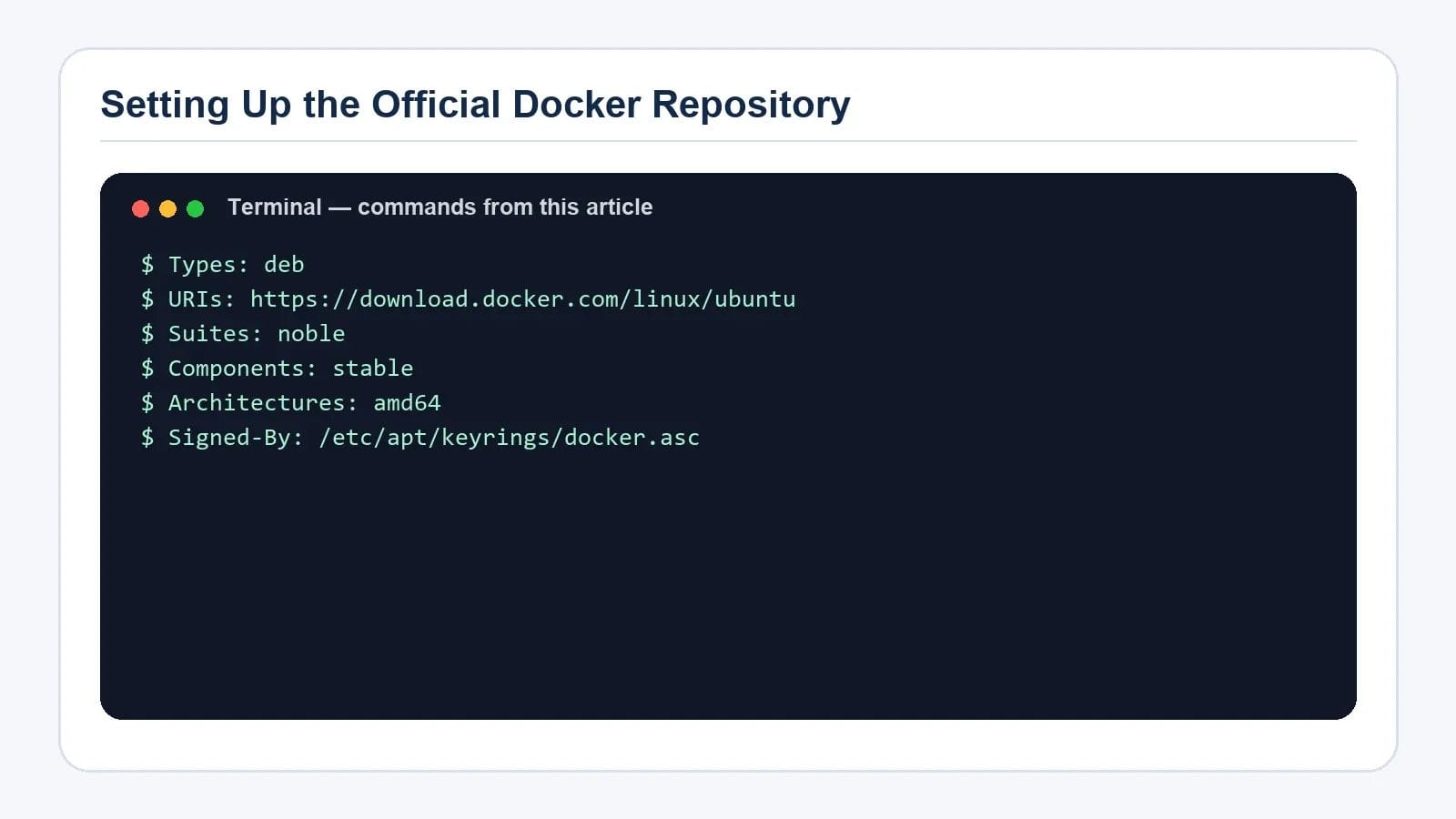
Ubuntu 24.04 prefers the modern Deb822 format for third-party repositories, which is cleaner and easier to audit than the older one-line entries. Create the source file and add the stable channel for Noble.
sudo nano /etc/apt/sources.list.d/docker.sources
Insert the following content, then save and exit:
Types: deb
URIs: https://download.docker.com/linux/ubuntu
Suites: noble
Components: stable
Architectures: amd64
Signed-By: /etc/apt/keyrings/docker.asc
Refresh the package index so apt learns about the new repository:
sudo apt update
Installing Docker Engine and Core Components
With the repository enabled, install the full Docker Engine stack in a single command. This pulls in the daemon, the command-line client, the container runtime containerd, Buildx for image builds, and the Docker Compose plugin for multi-service applications.
sudo apt install docker-ce docker-ce-cli containerd.io docker-buildx-plugin docker-compose-plugin -y
Installing the Compose plugin alongside the engine saves you a separate step later and is the recommended path for beginners who may soon need to manage multi-container apps.
Verifying That Docker Works Correctly
After installation, the Docker service starts automatically on most systems. Run a quick smoke test to confirm the daemon is responsive and that your user can talk to it.
- Check the service status:
sudo systemctl status docker - Run the hello-world image, which pulls a small test container and prints a confirmation:
sudo docker run hello-world - Confirm the installed versions:
docker --version
docker compose version
Docker Installation Steps at a Glance
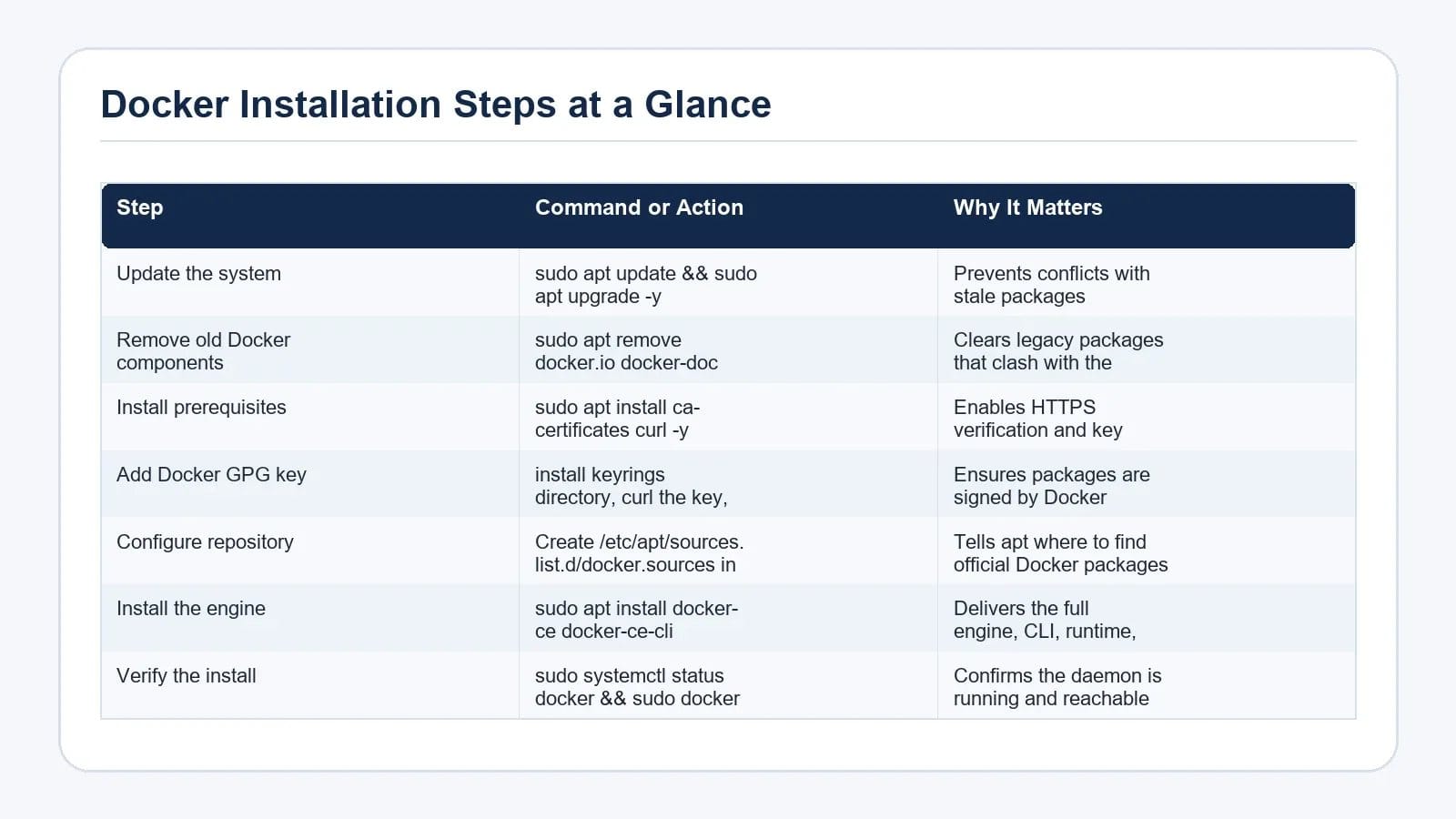
| Step | Command or Action | Why It Matters |
|---|---|---|
| Update the system | sudo apt update && sudo apt upgrade -y | Prevents conflicts with stale packages |
| Remove old Docker components | sudo apt remove docker.io docker-doc docker-compose docker-compose-v2 podman-docker containerd runc | Clears legacy packages that clash with the official engine |
| Install prerequisites | sudo apt install ca-certificates curl -y | Enables HTTPS verification and key download |
| Add Docker GPG key | install keyrings directory, curl the key, chmod a+r | Ensures packages are signed by Docker |
| Configure repository | Create /etc/apt/sources.list.d/docker.sources in Deb822 format | Tells apt where to find official Docker packages |
| Install the engine | sudo apt install docker-ce docker-ce-cli containerd.io docker-buildx-plugin docker-compose-plugin -y | Delivers the full engine, CLI, runtime, Buildx, and Compose plugin |
| Verify the install | sudo systemctl status docker && sudo docker run hello-world | Confirms the daemon is running and reachable |
Hardening and Post-Install Checklist
A working engine is only the start. A few extra steps make everyday use smoother and more secure:
- Add your non-root user to the docker group so you can run docker commands without sudo, then log out and back in for the change to apply.
- Configure log rotation through /etc/docker/daemon.json so container logs do not fill the disk.
- Enable a firewall such as ufw and only expose the ports your applications actually need.
- Keep the host patched with unattended-upgrades, especially on a long-lived VPS or dedicated host.
- Plan a backup strategy for named volumes, which store the persistent data your containers depend on.
For teams that want a managed environment without handling every layer themselves, Elite Cloud Hosting Plans pair well with container workloads that need predictable resources and isolation.
Frequently Asked Questions
Does Docker officially support Ubuntu 24.04 LTS?
Yes. Docker Engine officially supports Ubuntu 24.04 LTS in the 64-bit amd64 and arm64 architectures. Using a supported LTS release ensures you receive security patches and compatibility updates from both Ubuntu and Docker, which matters once you move containers into production.
How much RAM do I need to run Docker on Ubuntu 24.04?
For very small workloads you can start with 1 to 2 GB of RAM, but you should size for the host operating system, logs, and any services you plan to run inside containers. Databases, build servers, and multi-service Compose stacks typically need at least 4 GB, and production environments usually benefit from 8 GB or more to avoid swap thrashing.
Should I use a VPS or a dedicated server for Docker?
A VPS is the right fit for learning, test environments, small web apps, and single-service deployments where you want affordable infrastructure that is quick to provision. A dedicated server is a better choice when many production containers run at the same time, performance isolation matters, or you need consistently available resources. The decision usually comes down to scale, predictability, and budget.
Do I need to remove old Docker packages before installing the official engine?
Removing legacy components such as docker.io, docker-doc, older docker-compose variants, podman-docker, and runc is strongly recommended. These packages can conflict with the official Docker Engine and cause subtle issues such as mismatched versions, missing plugins, or duplicated daemons. If a package is not present, apt simply reports that there was nothing to remove.
Para valorar camisetas de fútbol para hombre con criterios claros, es recomendable revisar las medidas indicadas y el tipo de ajuste. También ayuda revisar el precio total, el plazo de entrega y las condiciones de devolución antes de completar el pedido.
Is Docker Compose included when I install Docker on Ubuntu 24.04?
When you install the recommended bundle on Ubuntu 24.04, you receive docker-ce, the CLI, containerd, Buildx, and the Docker Compose plugin in a single step. That means you can immediately use docker compose commands to manage multi-service applications, without having to download a separate binary or maintain a legacy docker-compose script.
Conclusion
Installing Docker on Ubuntu 24.04 is a matter of preparing the host, clearing legacy packages, adding Docker's GPG key and official repository in the Deb822 format, and installing the full engine bundle. Once the hello-world image runs successfully and the Docker Compose plugin reports a version, the host is ready for real container workloads. From here, treat the install as a starting point: harden SSH and the firewall, add your user to the docker group, configure log rotation, and build a backup routine for your named volumes. With those basics in place, Ubuntu 24.04 and Docker form a stable, well-supported foundation for everything from small side projects to production services.