Windows Server 2025 File Server Setup: A Practical Walkthrough
A hands-on guide to planning, installing, and securing a file server on Windows Server 2025, including hardware sizing, role installation, SMB share creation, and permission setup.
Running a central file server on Windows Server 2025 is still one of the most reliable ways to share documents, project assets, and backups across a team. The platform makes it straightforward to publish network shares, control access through Active Directory, and grow capacity as your data needs expand. This guide walks through the decisions you should make before installation and the exact configuration steps that turn a clean Windows Server 2025 host into a working SMB file server.
Key Takeaways
- Plan storage, network, and edition choices before you start the role installation.
- Sizing depends more on storage throughput and concurrent users than on raw CPU power.
- Windows Server 2025 Standard covers most SMB share scenarios; Datacenter is needed for cluster-heavy workloads.
- A dedicated data drive and a clear folder structure simplify permissions and backups.
- NTFS and share-level permissions work together and should be configured deliberately.
Plan the Hardware and Edition First
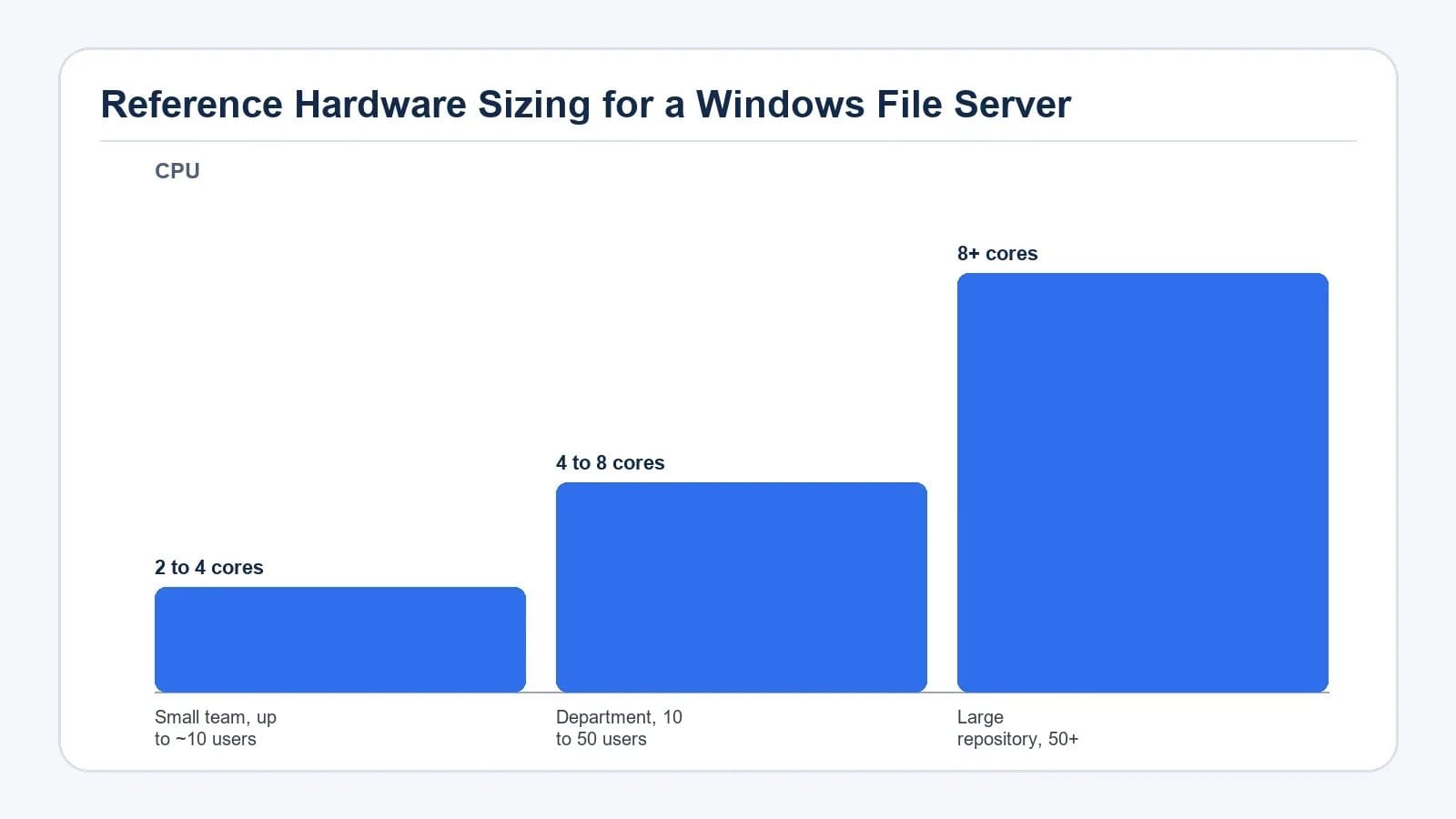
File servers live or die by storage performance, so size your disks before worrying about cores. A small team of up to about ten users typically runs well on a solid-state drive with 2 to 4 CPU cores and 4 to 8 GB of RAM. Workgroups with 10 to 50 users need more headroom, usually 4 to 8 cores, 16 to 32 GB of memory, and either SSDs in a redundant array or a RAID volume for resilience. Larger installations supporting 50 or more concurrent users benefit from 8 or more cores, at least 32 GB of RAM, and a dedicated RAID array or external storage system. In every case, prefer storage speed over compute power, and make sure the network path between clients and the server can carry sustained traffic.
For the operating system itself, Windows Server 2025 Standard is usually enough for ordinary departmental shares. Choose Datacenter when you need advanced virtualization rights, large cluster scenarios, or features such as Storage Spaces Direct. A clean installation with the latest cumulative updates and a static IP address gives you a stable foundation for everything that follows.
Choose Where the Server Will Run
Your hosting platform shapes performance, cost, and resilience. Bare metal hardware suits very large file stores with high concurrency because it removes the virtualization overhead. When uptime is business-critical, a cluster built on Scale-Out File Server gives you failover for SMB shares used by Hyper-V or database workloads.
For organizations that prefer managed infrastructure, a Managed Cloud VPS Hosting environment can host Windows Server 2025 and offload the patching and monitoring overhead.
Reference Hardware Sizing for a Windows File Server
| Workload profile | CPU | Memory | Storage |
|---|---|---|---|
| Small team, up to ~10 users | 2 to 4 cores | 4 to 8 GB | Single SSD volume |
| Department, 10 to 50 users | 4 to 8 cores | 16 to 32 GB | SSD or RAID |
| Large repository, 50+ users | 8+ cores | 32 GB or more | RAID array or external storage |
Install the File Server Role
Once the operating system is patched and reachable on the network, open Server Manager and launch the Add Roles and Features wizard. Choose a role-based installation and select the target server from the server pool. Expand File and Storage Services, then enable File and iSCSI Services, which includes the SMB server components. Step through the remaining wizard pages and start the installation. When it finishes, restart the server if the wizard prompts you to do so.
After the role is installed, confirm that the File and Storage Services node appears in Server Manager and that the server can browse its own local disks without errors.
Prepare the Data Drive and Folder Layout
Avoid storing shares on the system drive. Mount or present a separate data volume, for example D:, and create a logical folder tree beneath it. Clear naming at this stage saves hours of rework once dozens of users are mapped to the share.
Create the First SMB Share
From Server Manager, open File and Storage Services and select the Shares view. Run the New Share task and pick SMB Share - Quick for a standard scenario. Walk through the wizard, choosing the volume and folder you prepared earlier. Decide whether to enable access-based enumeration, which hides folders a user cannot open, and set the basic share permissions before finishing the wizard.
For more complex layouts, the SMB Share - Advanced option lets you set folder properties, classify data, and configure advanced security in the same flow.
Set NTFS and Share Permissions Carefully
Share-level permissions control access over the network, while NTFS permissions govern the files and folders themselves. The effective right is the most restrictive of the two, so configure both with intention. Remove the Everyone group where it is not needed, and use security groups rather than individual user accounts so that onboarding and offboarding stay simple.
Validate Access from a Client
From a Windows workstation joined to the same domain or trusted network, open File Explorer and browse to \\servername\sharename using the server's hostname or static IP. Confirm that the expected folders appear and that you can read and write the files your account should access. If the share does not appear, check that the SMB server service is running, that the Windows firewall allows file and printer sharing, and that DNS resolves the server name.
Harden the Deployment
Once shares are live, take a few extra steps to keep them safe. Enable file server resource manager if you need quotas, file screening, or detailed storage reports.
When you compare operating systems for a similar workload, our linux distros for VPS hosting guide is a useful reference for non-Windows scenarios.
Frequently Asked Questions
Which edition of Windows Server 2025 is best for a typical file server?
Standard covers most departmental file sharing, including SMB shares, NTFS permissions, and basic storage management. Datacenter is worth the extra cost only when you need advanced virtualization licensing, large cluster features, Storage Spaces Direct, or other data-center capabilities that go beyond ordinary shares.
How much hardware do I really need for a small team?
For up to about ten users, 2 to 4 CPU cores, 4 to 8 GB of RAM, and a single SSD volume are usually enough. The limiting factor is almost always disk throughput, so prefer fast storage over extra CPU and keep an eye on RAM growth if you enable file screening or antivirus scanning on the server.
Do I have to use Active Directory for permissions?
Active Directory makes permission management much easier, but you can also host shares in a workgroup using local accounts. The trade-off is that you manage users on each server individually, which becomes painful beyond one or two machines. For anything beyond a small pilot, a domain is the cleaner option.
What is the difference between a regular file server and Scale-Out File Server?
A general-use file server runs on a single node and is fine for user shares. Scale-Out File Server spreads SMB traffic across several clustered nodes and keeps shares continuously available during failover, which is why it is preferred for Hyper-V storage and database files that cannot tolerate downtime.
How can I control who sees which folders inside a share?
Combine NTFS permissions on the folders themselves with access-based enumeration on the share so users only see directories they can actually open. Manage access through domain security groups rather than individual accounts so that adding or removing a user only takes a single group change.
Action Checklist Before You Go Live
- Confirm the server has a static IP, working DNS, and current patches.
- Mount a dedicated data drive and create a documented folder layout.
- Install the File and iSCSI Services role and verify Server Manager reflects it.
- Create at least one SMB share and test access from a domain-joined client.
- Configure NTFS permissions through security groups and review share-level rights.
- Disable SMB1, require SMB signing or encryption, and open the firewall for file sharing.
- Schedule and test backups that respect NTFS permissions and VSS snapshots.
A well-planned Windows Server 2025 file server delivers fast, controlled access to shared data with very little day-to-day administration. Start with clear folders, deliberate permissions, and a backup you have actually restored, and the rest of the environment tends to stay calm. For teams that prefer the underlying hardware off their plate, a Managed Cloud VPS Hosting platform can host the file server while you focus on permissions and data layout. If you are also weighing cluster deployments, our managed VPS cluster hosting guide covers the broader high-availability picture.