How to Pass Core Web Vitals in WordPress Without a Developer
Most Core Web Vitals failures come from hosting and caching, not code. Learn the practical fixes a non-developer can apply on a managed WordPress plan.
Passing Core Web Vitals in WordPress has very little to do with writing code. Google's measurement focuses on three real-user signals: Largest Contentful Paint, Interaction to Next Paint, and Cumulative Layout Shift. The biggest improvements almost always come from the web server, the caching layer, and the PHP version running behind the site. When a managed hosting platform takes care of that foundation, the rest becomes a content job rather than a development project.
Key Takeaways
- Core Web Vitals are graded on real-user field data collected over 28 days, not a single lab test.
- Slow server response and missing caching account for most failures, far more than theme or design choices.
- A modern PHP version, a page cache, and a dedicated object cache resolve the infrastructure side of the equation.
- Images, layout shifts, and heavy plugins still need owner attention regardless of the hosting stack.
- No hosting provider can guarantee a pass, because field data also reflects content decisions.
Why Core Web Vitals Matter
Google uses Core Web Vitals as part of its page experience signals, and the metrics double as a practical measure of how fast a site feels. A store page that takes four seconds to render the main product image will lose visitors long before the "Add to cart" button is reachable. When Interaction to Next Paint replaced First Input Delay as a ranking signal in March 2024, many site owners saw their scores drift into the "needs improvement" range without changing a single line of content.
The good news is that the underlying causes of poor Core Web Vitals are usually structural. A capable hosting layer handles the structural part automatically, which removes the need to bring in a developer for routine performance work. For related WordPress hardening that complements speed work, see our coverage of ninety minutes WordPress core rce weaponized.
How the Three Metrics Actually Work
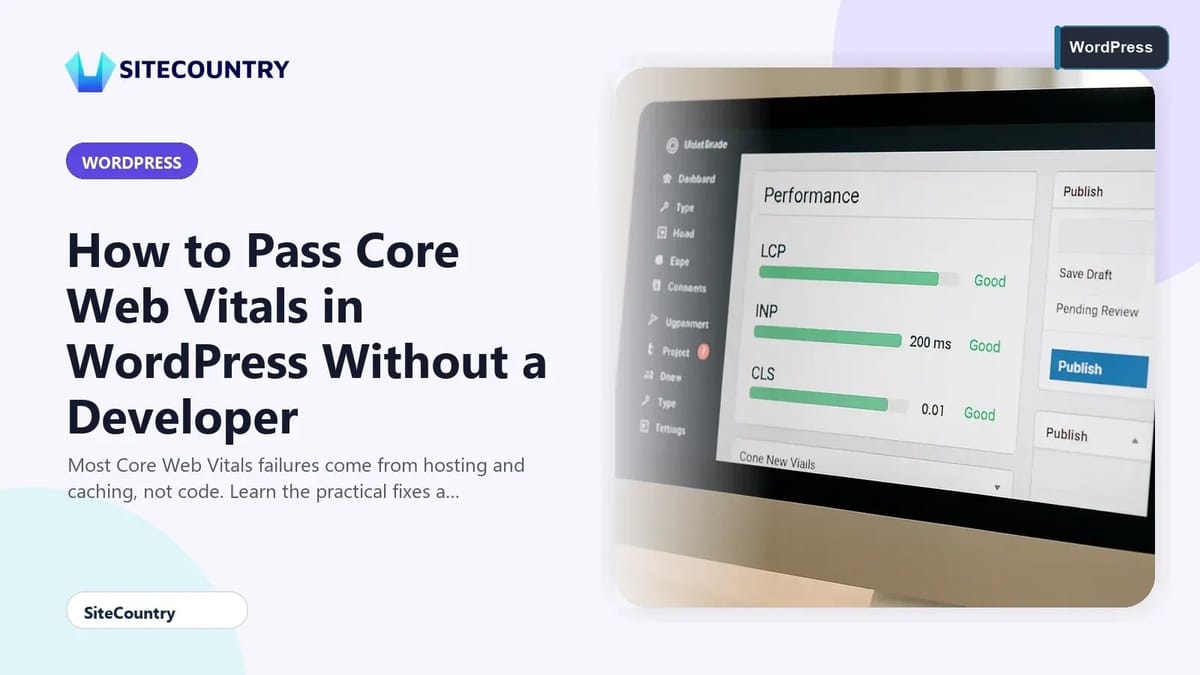
Largest Contentful Paint tracks the render time of the biggest visible element on the page, typically a hero image, video poster, or large headline.
Interaction to Next Paint measures how quickly the page reacts when a visitor taps, clicks, or types. The benchmark to hit is 200 milliseconds or less for the slowest interaction during a session.
Cumulative Layout Shift captures how much the visible layout jumps around as late resources arrive. A score of 0.1 or lower is treated as good and means visitors are not fighting moving buttons or shifting text.
Each metric responds to a different lever. CLS is almost entirely a content problem caused by missing image dimensions, late-loading fonts, or animations that push other elements around.
Common Misconceptions About Passing Core Web Vitals
A popular shortcut is to install a caching plugin and a general "speed optimizer," then assume the job is finished. A caching plugin layered on top of an outdated PHP runtime and no object cache only masks the real bottleneck.
Another misconception is the obsession with a single perfect score. Concentrate on the causes that appear repeatedly in field reports, and the score will follow.
Where Hosting Choices Make the Difference
Most Core Web Vitals failures start at the server. A managed VPS running LiteSpeed as the web server handles requests far more efficiently than older Apache setups, and LiteSpeed's built-in page cache short-circuits most rebuilds entirely.
Pairing that with a Redis object cache moves repeated database lookups out of MySQL and into memory, which is where WordPress spends most of its time during admin actions, WooCommerce checkouts, and complex queries.
Other infrastructure touches matter too. Replacing WordPress's on-request wp-cron with a real server-side cron running every five minutes prevents scheduled tasks from firing during visitor page loads, which protects INP on busy sites.
Managed Setup vs. Stock WordPress
A managed WordPress environment typically applies the performance layer automatically when a new site is created. The table below compares the typical defaults against what a tuned managed install delivers.
| Layer | Stock WordPress install | Tuned managed install |
|---|---|---|
| Page cache | Owner installs and configures a plugin | LiteSpeed Cache active on the maximum-performance profile |
| Object cache | None by default | Dedicated Redis instance wired into WordPress |
| PHP runtime | Whatever the host defaults to | Raised to PHP 8.3 where supported, from anything below 8.1 |
| Scheduled tasks | wp-cron runs on each page load | Real server cron running every five minutes |
| Database hygiene | Unlimited post revisions and autosaves | Revisions capped at 10, autosave at 120 seconds, trash cleared at 14 days |
| Cache verification | Manual | Cache warmed and a cache hit confirmed before install completes |
What the Hosting Layer Cannot Fix
Even the best-managed stack cannot rescue a site that fights its own content. Owners still have to size images, declare width and height attributes, lazy-load below-the-fold media, and audit plugins that ship heavy front-end assets.
There are also hard requirements. If the platform offers a manual control, the same performance profile can be applied to an existing install on demand.
Patience matters as well. Field data updates on a rolling 28-day window, so a fix applied today may not move the official CrUX report for several weeks.
Installing WordPress the Right Way
The actual install flow on a managed control panel is short and runs through WordPress Manager. From that point, the performance layer is already in place, so the work shifts to content-side fixes.
For owners who prefer to repair a struggling existing site rather than start fresh, the same WordPress Manager offers an apply-tuning control. Running it on a live install rebuilds the cache profile, raises the PHP version if possible, and wires in Redis. For a deeper look at recovery steps when a WordPress install itself breaks, see how to restore WordPress core through control panel.
Action Checklist
- Confirm the web server is OpenLiteSpeed or LiteSpeed Enterprise so the cache layer can engage.
- Verify a Redis object cache is active in the site's object-cache.php drop-in.
- Check that PHP is running 8.1 or newer, ideally 8.3.
- Size every above-the-fold image and add explicit width and height attributes.
- Lazy-load below-the-fold images and any heavy iframes.
- Audit front-end plugins, remove anything that loads large scripts on every page.
- Re-test field data after two to four weeks so the rolling window reflects the changes.
Frequently Asked Questions
What is a good Core Web Vitals score for WordPress?
Google grades the three metrics against thresholds drawn from real-user field data. Largest Contentful Paint at 2.5 seconds or faster, Interaction to Next Paint at 200 milliseconds or faster, and Cumulative Layout Shift at 0.1 or lower are all considered good. Those targets are evaluated at the 75th percentile of real visits, which means the slower quarter of your traffic still has to land within range.
Can a caching plugin alone fix Core Web Vitals?
A caching plugin helps, but on its own it rarely moves the needle enough. If the server response time stays high because of an old PHP version, no object cache, or a weak web server, the cache simply speeds up an already slow foundation. Pair the caching plugin with a modern PHP runtime and a Redis object cache for the largest improvement.
How long does it take to see results after fixing the site?
Field data updates on a rolling 28-day window, so changes made today typically show up in Google's official CrUX report a few weeks later. Lab tests from tools like PageSpeed Insights or Lighthouse can confirm the fixes immediately, but the official score used for ranking still needs time to refresh.
Do I need a developer to pass Core Web Vitals?
Most Core Web Vitals problems are infrastructure problems, and a managed hosting environment can resolve the server, cache, and PHP side without writing code. The remaining work, such as sizing images, trimming plugins, and stabilizing layout, is content work that any site owner can handle. A developer is only needed when a custom theme or a complex application is generating the slow interactions.
Does upgrading to the latest WordPress version help performance?
Newer WordPress releases ship performance improvements, bug fixes, and security patches that keep the site running efficiently. Keeping core, themes, and plugins current removes known bottlenecks and protects against exploits that could otherwise drag the site down. For a recent example, see our WordPress imagick rce patch coverage and the WordPress 7 1 beta 4 checklist, along with our overview of WordPress 7 1 release features.
Conclusion
Core Web Vitals are a hosting problem until they become a content problem. Get the server, caching layer, and PHP version right first, and the structural half of the work is done. Then turn to images, plugins, and layout stability, which are the parts only the site owner can fix. Run the changes, give the field data a month to refresh, and re-test. With that loop in place, passing Core Web Vitals on WordPress is a repeatable project rather than a developer engagement.